

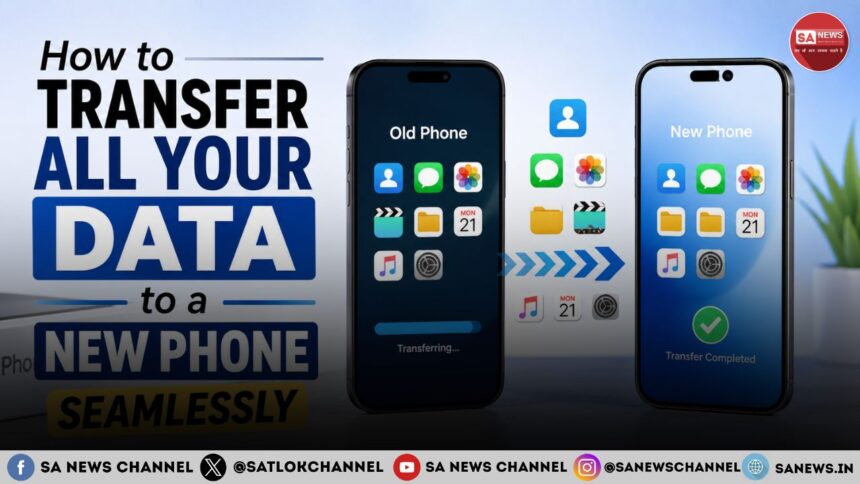
How to Transfer All Your Data to a New Phone Seamlessly: Let’s be honest: getting a new phone is exciting, but the thought of moving everything over can feel like a digital root canal. You worry about losing precious photos, forgetting crucial passwords, or spending hours staring at a frustrating loading screen. But here’s the good news, it doesn’t have to be that way.
- Why a Smooth Transfer Matters More Than You Think
- The Preparation: The 5-Minute Step You Can’t Skip
- For Android users:
- For iPhone users:
- What to do step by step:
- What transfers over:
- Android to Android: The Google Backup Restoration
- The steps:
- What Google backs up:
- The Cross-Platform Challenge: Android to iPhone
- The Cross-Platform Challenge: iPhone to Android
- The New Frontier: Quick Share and Cross-Platform “AirDrop”
- Troubleshooting Common Transfer Issues
- Transfer keeps failing or timing out:
- Not enough storage space on new phone:
- Apps not transferring properly:
- Photos missing or not in order:
- Pro Tips for a Smooth Transfer
- What to Do After the Transfer
- Make Your New Phone Feel Like Home from Day One
- Spiritual Perspective: Technology Makes Life Easier, Wisdom Makes Life Meaningful
- Frequently Asked Questions About Transferring Data to a New Phone
Transferring your data today can be genuinely seamless, whether you’re staying loyal to a brand, jumping from Android to iOS, or going in the other direction. The key is knowing the right method for your situation and preparing properly. Let’s walk through the best ways to ensure your new phone feels like your old one from the very first unlock.
Why a Smooth Transfer Matters More Than You Think
Your smartphone isn’t just a device, it’s your digital brain. It holds years of memories, critical work documents, important contacts, and even your entertainment preferences. A botched transfer can mean losing photos from your child’s first steps, missing that crucial client’s number, or spending days reconfiguring your banking apps.
The emotional toll is real:
- Frustration when you can’t find that one important file
- Anxiety about losing irreplaceable memories
- Wasted hours trying to manually move data
- Stress from setting up apps one by one
That’s why investing a little time upfront to understand the transfer process saves you countless headaches later.
The Preparation: The 5-Minute Step You Can’t Skip
Before you even turn on your new device, take a deep breath and do this one thing: back up your old phone. This is your safety net. It ensures that even if the transfer glitches halfway through, your data is completely safe and recoverable.
For Android users:
- Open Settings > System > Backup and make sure backup is enabled
- This secures your contacts, call history, device settings, and app data
- Samsung users can also find this under Settings > Accounts and backup
- Google One users get 15GB of free cloud storage for backups
- You can also manually back up photos to Google Photos for extra security
For iPhone users:
- Head to Settings > [Your Name] > iCloud > iCloud Backup
- Tap “Back Up Now” to create a snapshot of everything
- Make sure you have enough iCloud storage (Apple offers 5GB free)
- Consider upgrading temporarily if you have a lot of data
- You can also back up to a computer using Finder or iTunes as a secondary option
Pro tip: Do this backup the night before your new phone arrives. It takes time, and you don’t want to be rushing through it while excited about your shiny new device.
The “It Just Works” Scenario: Same Ecosystem Transfers
iOS to iOS: The Quick Start Method
If you’re upgrading to a new iPhone, Apple makes this incredibly smooth. When you turn on your new phone, just place it near your old one, the “Quick Start” screen pops up automatically like magic.
What to do step by step:
- Turn on your new iPhone and place it next to your old one
- The Quick Start screen appears on your old device
- Scan the beautiful animation on your new phone using your old iPhone’s camera
- Enter your old passcode when prompted
- Choose to restore directly from an iCloud backup
- Alternatively, you can transfer directly from your old iPhone using a cable
- Your photos, apps, and settings download while you complete setup
What transfers over:
- All your apps and their data
- Photos and videos in full resolution
- Messages and iMessage history
- Call logs and voicemails
- Wi-Fi passwords and Bluetooth pairings
- Health data and Apple Watch settings
- HomeKit and smart home configurations
It’s a true “set it and forget it” experience that usually takes 15–45 minutes depending on your data size.
Android to Android: The Google Backup Restoration
Moving between Android devices? The magic happens during initial setup. Google has refined this process over years to make it nearly effortless.
The steps:
- When prompted to “Copy apps & data,” choose restore from a Google backup
- Log into your Google account (the same one used on your old device)
- Select the most recent backup from your old device
- Your new phone starts downloading everything automatically
- Choose which apps and data to restore (you can deselect items to save time)
What Google backs up:
- Contacts and calendar events
- Device settings and preferences
- Wi-Fi networks and passwords
- Most app data from supported apps
- Call history and SMS messages
- Home screen layout and launcher settings
This even remembers your home screen layout and many of your app settings, so your new phone feels familiar right away. The process is smooth, though it may take longer if you have hundreds of apps.
The Cross-Platform Challenge: Android to iPhone
Switching to iOS from Android is now easier than ever. Apple’s official solution is the “Move to iOS” app, and it’s been steadily improving over the years.
How it works in detail:
- Download the Move to iOS app on your Android phone from the Google Play Store
- Start setup on your new iPhone until you reach the “Apps & Data” screen
- When you see “Transfer Your Apps & Data,” select “From Android”
- A secure code appears on your iPhone screen
- Enter this code into the Move to iOS app on your Android device
- Your phones establish a direct Wi-Fi connection
- Select what you want to transfer and let it run
What moves over smoothly:
- Contacts and message history
- Camera photos and videos
- Web bookmarks and mail accounts
- WhatsApp messages and media (important for many users)
- Calendar events and reminders
- Free apps that are available on both platforms
What doesn’t transfer:
- Paid apps (you’ll need to repurchase or restore purchases)
- Most game progress (unless cloud-saved)
- Some Android-specific settings
- Third-party launcher configurations
If you have a newer Android phone (running Android 17 or later), you can even do this without the app, using direct Wi-Fi or a cable connection. This is faster and more reliable for large transfers.
The Cross-Platform Challenge: iPhone to Android
Moving from the “walled garden” of iOS to Android is also straightforward, often driven by Google Drive or manufacturer-specific tools.
Your options:
- Google Drive method: Back up contacts, calendar events, and photos from your iPhone to Google Drive. These sync to your new Android phone during setup
- Samsung Smart Switch: A free, popular tool that works across platforms and supports cable transfers for speed
- Motorola Moto Migrate: Transfers iCloud data directly to Motorola devices
- OnePlus Switch: Similar tool for OnePlus users
- Xiaomi Mi Mover: For Xiaomi device owners
Important considerations:
- iMessage history doesn’t transfer to Android (save important conversations as screenshots)
- FaceTime calls won’t transfer (you’ll need a third-party app like Google Meet)
- Apple Pay won’t work (set up Google Pay instead)
- Some iOS-exclusive apps won’t have Android equivalents
A quick tip: using a physical cable between devices significantly speeds up the process compared to wireless transfers. Cable transfers can be 3–5 times faster, especially for large photo libraries.
The New Frontier: Quick Share and Cross-Platform “AirDrop”
A game-changer arrived in 2026 with the expansion of Google’s Quick Share. This is essentially an Android version of AirDrop, but it now works seamlessly with iPhones too, a huge leap forward for cross-platform users.
What makes it revolutionary:
- Wireless full-data migration between Android and iOS
- Transfer contacts, photos, videos, and even app lists
- No cables or cloud services required
- Works with major brands like Samsung, OPPO, vivo, and Xiaomi
- Similar speed to Apple’s AirDrop
How to use Quick Share:
- Enable Quick Share on both devices
- Select the files or data you want to transfer
- Choose the receiving device from the list
- Accept the transfer on the other phone
- Wait for the transfer to complete
This makes cross-platform data transfer as easy as tapping a single button, removing one of the biggest barriers to switching ecosystems.
Troubleshooting Common Transfer Issues
Even with all these tools, things can occasionally go wrong. Here’s how to handle the most common problems:
Transfer keeps failing or timing out:
- Make sure both devices have at least 50% battery
- Connect both phones to the same Wi-Fi network
- Try using a cable instead of wireless
- Restart both phones and try again
- Close other apps running in the background
Not enough storage space on new phone:
- Delete unnecessary apps and files before starting
- Use cloud storage for photos and videos
- Transfer only essential data first
- Consider upgrading your storage plan
Apps not transferring properly:
- Download them manually from the app store
- Most paid apps can be reinstalled without repurchasing
- Check if the app has cloud backup for your data
- Contact the app developer for specific migration help
Photos missing or not in order:
- Check cloud backup (Google Photos or iCloud)
- Use a dedicated transfer cable for photos
- Upload to a computer and transfer via USB
- Use a third-party photo transfer tool
Pro Tips for a Smooth Transfer
Keep these practical pointers in mind to avoid headaches:
- Keep both phones plugged in – Transfers drain battery fast, especially with large files. Don’t risk a shutdown mid-transfer.
- Be patient – Depending on your data size, the process can take 10 minutes to over an hour. Start the transfer when you have time to wait.
- Check storage space first – Make sure your new phone has enough room for everything from your old one. You don’t want to discover this halfway through.
- Re-download apps manually – Contacts and photos transfer easily, but many apps need fresh installs from the app store. This is normal.
- Keep your old phone nearby – You might need it for two-factor authentication codes during setup of banking apps and email accounts.
- Don’t wipe your old phone immediately – Keep it for at least a week until you’re sure everything is transferred correctly.
- Check your important apps first – Verify that your banking apps, messaging apps, and work-related tools are working before you reset your old device.
What to Do After the Transfer
The transfer isn’t complete when the loading bar finishes. Here’s your post-transfer checklist:
- Verify your contacts – Scroll through and make sure everyone is there
- Check your photos – Open your gallery and browse recent albums
- Test your apps – Open your most-used apps to ensure they work
- Log back into key services – Email, banking, social media, and streaming apps
- Set up biometrics – Register your face or fingerprint for security
- Reconnect smart devices – Smartwatches, earbuds, and home devices need re-pairing
- Test your notifications – Make sure alerts come through properly
- Check your storage – See how much space you have left
Make Your New Phone Feel Like Home from Day One
Switching to a new smartphone should be an exciting experience, not a stressful one. Thanks to today’s advanced data transfer tools, moving your contacts, photos, videos, messages, apps, documents, and personal settings has become faster and more reliable than ever. Whether you’re upgrading from Android to Android, iPhone to iPhone, or switching between platforms, following the right steps can help you complete the process without losing valuable information.
Also Read: Which is the Best Laptop in India | Top Models Compared
The key to a successful transfer is preparation. Always back up your old device, use trusted transfer methods, and verify that all your important data has been copied before resetting or selling your previous phone. Taking a few extra minutes to double-check everything can save you from unnecessary frustration later.
Once the transfer is complete, your new phone should feel familiar from the very first moment. Your memories, conversations, favorite apps, and essential files will be right where you expect them, allowing you to enjoy your upgraded device without interruption. With careful planning and the guidance in this article, you can make the transition smooth, secure, and completely hassle-free. If you found this guide helpful, we’d truly appreciate your feedback. Please leave a positive comment below and let us know how this guide helped you. Even a simple “Thank you” means a lot and motivates us to create more useful content for you.
Spiritual Perspective: Technology Makes Life Easier, Wisdom Makes Life Meaningful
Modern technology has made it easier than ever to transfer years of memories, important documents, and personal information from one phone to another. While protecting our digital data is important, it also reminds us of a deeper truth: just as we carefully preserve what is valuable in our phones, we should also nurture the values, knowledge, and virtues that shape our lives. Material possessions and devices change with time, but good character, compassion, and spiritual understanding are the true assets that enrich life.
For readers who wish to explore spiritual knowledge alongside modern living, the Tatavdarshi Sant Rampal Ji Maharaj App, available on the Google Play Store, serves as a valuable resource. The app provides access to spiritual discourses, satsang videos, devotional bhajans, sacred books, daily spiritual thoughts, and information about upcoming spiritual programs. It offers an easy way to study these teachings anytime and deepen your understanding of life’s purpose and spiritual values.
Frequently Asked Questions About Transferring Data to a New Phone
Will I lose my photos while transferring to a new phone?
No, if you create a backup beforehand and verify the transfer before deleting anything from your old device.
Can I transfer data without the internet?
Yes. Many smartphones support direct cable or local wireless transfers that do not require an internet connection, though cloud backups do.
Do all apps transfer with their data?
The apps usually reinstall automatically, but whether their data transfers depends on the app. Some require you to sign in again or restore information from their own cloud service.
Is transferring data to a new phone safe?
Yes, provided you use the built-in transfer tools from your phone manufacturer or operating system and avoid unknown third-party software.
Can I use my old phone after transferring data?
Yes. Your old phone remains usable until you choose to erase it. It’s a good idea to keep it for a few days to confirm that everything has been transferred correctly.