


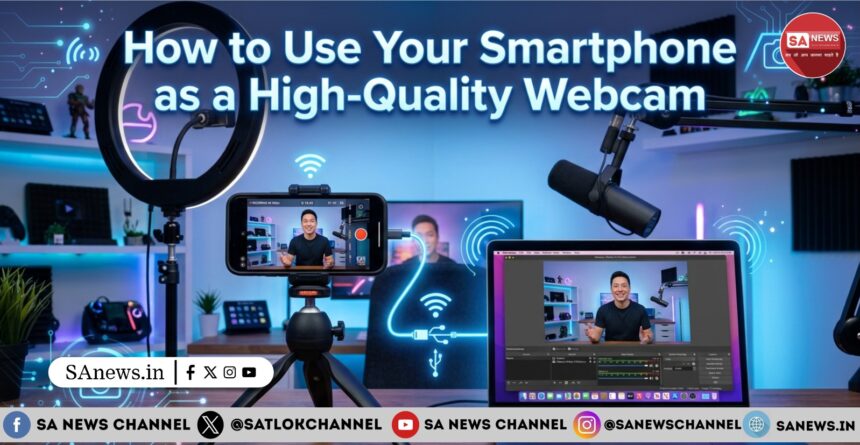
Video calls are now a part of everyday life. People use them for online meetings, virtual classes, job interviews, and live streaming. But there is one problem many people face — poor webcam quality.
- Why Smartphones Work Better Than Laptop Webcams
- Things You Need Before Starting
- Best Apps to Use Your Smartphone as a Webcam
- Step-by-Step Guide to Use Your Smartphone as a Webcam
- Step 1: Install the Webcam App
- Step 2: Connect Your Phone to Your Computer
- Step 3: Place Your Smartphone Correctly
- Step 4: Select the Phone Camera in Video Apps
- Tips to Improve Your Video Quality
- Common Problems and Easy Solutions
- Why Content Creators Use Smartphones as Webcams
- Future of Smartphone Webcams
- Conclusion
Most laptop webcams are not very good. They often produce blurry video, poor lighting, and dull colors. This can make you look unclear during important calls or meetings.
The good news is that you may already have a much better camera with you — your smartphone.
Modern smartphones come with powerful cameras that are far better than most built-in laptop webcams. With the help of a few simple apps, you can turn your smartphone into a high-quality webcam in just a few minutes.
In this guide, you will learn how to use your smartphone as a webcam step by step. The process is simple, and even beginners can follow it easily.
Why Smartphones Work Better Than Laptop Webcams
Many people are surprised when they learn that smartphones can work better than webcams. There are several reasons for this.
Better Camera Sensors
Smartphones are designed mainly for photography and video. Because of this, they usually have much better camera sensors than laptops.
This means your video will look:Sharper, Brighter, More detailed. Even a mid-range smartphone can often produce better video quality than an expensive laptop webcam.
Better Low-Light Performance
Laptop webcams struggle when lighting is not perfect. If the room is slightly dark, the video may look grainy.
Smartphones are designed to work in different lighting conditions. They can adjust brightness and focus automatically, making the video clearer.
Smart Camera Features
Smartphones include several features that improve video quality, such as: Autofocus, HDR video, Image stabilization, Beauty filters, Multiple lenses
These features help your video look more natural and professional.
You Save Money
Buying a high-quality webcam can cost a lot of money. But if you already own a smartphone, you don’t need to spend extra.
You can simply use your phone as a webcam and get great video quality without buying new equipment.
Things You Need Before Starting
Before turning your phone into a webcam, make sure you have a few basic things.
You will need smartphone (Android or iPhone), computer or laptop, USB cable or Wi-Fi connection, webcam app
Once you have these ready, the setup usually takes less than 10 minutes.
Best Apps to Use Your Smartphone as a Webcam
Several apps allow your smartphone to work as a webcam for your computer. These apps connect your phone camera to your laptop.
Here are some popular options.
DroidCam
DroidCam is one of the most commonly used apps for turning smartphones into webcams.
It works with:Android phones, iPhones, Windows computers, Mac computers
The app allows connection through Wi-Fi or USB cable.
Many students and professionals use DroidCam for Zoom meetings, online classes, and video calls.
Iriun Webcam
Iriun Webcam is another simple and powerful app.
It offers: High-resolution video support, compatibility with Windows, Mac, and Linux, easy setup process
Some versions of the app even support 4K video quality.
EpocCam
EpocCam is popular among content creators and streamers.
It offers Smooth video connection, Good image quality, Compatibility with streaming software
This app works well for YouTube streaming and video recording.
Camo
Camo is a more advanced webcam app.
It allows users to adjust camera brightness, focus, exposure, frame rate
It is often used by people who want professional-looking video calls.
Step-by-Step Guide to Use Your Smartphone as a Webcam
Now let’s see how to connect your phone to your computer.
Step 1: Install the Webcam App
First, download a webcam app on your smartphone.
Then download and install the desktop version of the same app on your computer.
Both apps work together to connect your phone camera to your laptop.
Step 2: Connect Your Phone to Your Computer
There are two ways to connect your phone.
Method 1: Using Wi-Fi
This method is simple and does not require cables.
Steps:
- Connect your phone and computer to the same Wi-Fi network.
- Open the webcam app on your phone.
- Open the desktop version of the app on your computer.
- Enter the IP address shown on the phone.
After this, your phone camera will appear as a webcam.
Method 2: Using USB Cable (Recommended)
Using a USB cable is usually more stable than Wi-Fi.
Steps:
- Connect your phone to the computer with a USB cable.
- Open the webcam app on both devices.
- Start the connection.
USB connection reduces video delay and connection problems.
Step 3: Place Your Smartphone Correctly
Camera placement is very important for good video quality.
Here are some tips.
Keep the phone at eye level, Use a tripod or phone holder, Avoid placing the camera too low, Make sure the camera is stable
Good positioning makes your video look more natural and professional.
Step 4: Select the Phone Camera in Video Apps
After connecting the phone, your computer will detect it as a webcam.
You can use it in apps such as:
Zoom, Google Meet, Microsoft Teams, Skype, Discord, OBS Studio
Simply open the video settings and choose the webcam app as the camera source.
Tips to Improve Your Video Quality
Even with a good camera, small adjustments can make your video look much better.
Use Good Lighting
Lighting plays a very important role in the quality of a video. When the lighting is good, the video appears clearer and more professional.
For the best results, it is helpful to sit facing a window or another light source so that the light falls directly on your face. At the same time, strong light coming from behind should be avoided because it can make your face look dark or unclear on camera.
You can also use a desk lamp or a ring light to improve the brightness. Good lighting can instantly enhance the clarity of your video and make it look much better.
.
Use the Rear Camera
The rear camera on smartphones is usually much better than the front camera.
If possible, use the rear camera for sharper and clearer video.
Clean Your Camera Lens
Sometimes blurry video happens simply because the camera lens is dirty.
Before starting a call, clean the lens gently with a soft cloth.
Keep the Phone Stable
Shaky video can be distracting.
Use a tripod, stand, or stable surface to hold your phone.
Common Problems and Easy Solutions
Sometimes users may face small issues while using a smartphone webcam.
Here are quick solutions.
Video Lag
If the video is slow or delayed, using a USB connection instead of Wi-Fi can help make the connection more stable. It is also useful to close unnecessary apps so the device can focus on the video. Lowering the video resolution can further reduce lag and improve smooth performance.
Phone Heating
Continuous camera use can cause the phone to heat up. To reduce heating, it is helpful to remove the phone case so heat can escape more easily. Lowering the screen brightness can also help decrease the temperature. Keeping the phone in a cool place can further prevent overheating during use.
Battery Draining Quickly
Using the camera drains battery fast.
The easiest solution is to keep the phone connected to a charger.
Why Content Creators Use Smartphones as Webcams
Many YouTubers and streamers now use smartphones as webcams because smartphones provide better image quality than many standard webcams. They also offer better autofocus, which helps keep the image clear during recording. In addition, smartphones can capture higher-resolution video and often produce more accurate and natural colors.
With proper lighting, smartphone cameras can produce video that looks almost professional.
Future of Smartphone Webcams
Smartphone cameras are improving every year, and new phones now support advanced features such as 4K video recording, AI background blur, advanced video stabilization, and cinematic video effects that make videos look more professional.
Because of these improvements, smartphones are becoming a powerful alternative to traditional webcams.
Conclusion
Using your smartphone as a webcam is one of the easiest and most affordable ways to improve your video quality. With a simple app and proper setup, you can turn your phone into a high-quality webcam for meetings, online classes, and streaming. To get the best results, install a reliable webcam app and use a USB connection if possible for a more stable connection. It is also important to improve your lighting and place the phone at eye level so the video looks natural. Using the rear camera can provide better quality. By following these simple steps, your video calls can look clearer, sharper, and more professional.